

 1 day ago
11
GCash makes it convenient to transfer money from your mobile wallet to a Philippine bank account. Whether you need to pay bills, send money to family, deposit funds into your savings account, or move money to another financial institution, you can complete most bank transfers directly through the GCash app.
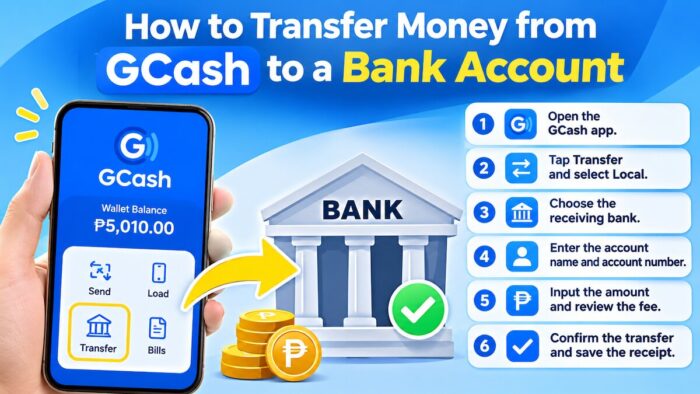
How to Transfer Money from GCash to a Bank Account
The process is straightforward, but you need to select the correct bank, enter the recipient’s information accurately, and review the transaction before confirming it. Understanding transfer fees, limits, processing times, and QR code options can also help you avoid unnecessary charges and common mistakes.
This guide explains how to transfer money from GCash to a bank account, including traditional banks, digital banks, QR code transfers, troubleshooting procedures, and practical tips for safer transactions.
What Is GCash Bank Transfer?
GCash Bank Transfer lets users send money from their GCash wallet to supported bank accounts and other financial institutions in the Philippines.
The service commonly uses InstaPay, an electronic fund transfer facility that supports near-real-time transfers between participating banks and e-wallets.
You can use GCash Bank Transfer to:
- Send money to your personal bank account.
- Transfer funds to another person’s bank account.
- Move money to digital banks.
- Pay someone who provides bank account details.
- Transfer money using a compatible bank QR code.
- Send money to popular banks such as BDO, BPI, Metrobank, and UnionBank when the app supports it.
GCash provides different ways to transfer money to a bank account, including manually entering the recipient’s account details or scanning a compatible bank QR code.
What You Need Before Transferring Money from GCash to a Bank Account
Before initiating a transfer, prepare the following information and check your wallet balance.
1. An Active GCash Account
You need an active GCash account with access to the bank transfer feature. Your account should allow the transaction without restrictions.
If the app requests verification or additional security checks, complete the required steps before proceeding.
2. Sufficient GCash Wallet Balance
Make sure your wallet has enough money to cover both the amount you want to transfer and the applicable transfer fee.
For example, if you want to transfer PHP 1,000 and the displayed transfer fee is PHP 10, you need at least PHP 1,010 in your wallet.
Your available wallet balance may also be affected by your account limits.
3. Recipient’s Bank Information
For a standard bank transfer, you generally need:
- Recipient’s bank name
- Recipient’s account name
- Recipient’s bank account number
- Transfer amount
Always obtain the information directly from the intended recipient. Do not assume that their bank account number is the same as their debit card number or mobile number.
4. Updated GCash App
Using an updated version of GCash helps ensure that you can access the latest features and available bank transfer options.
If you cannot find the bank transfer feature, check whether an app update is available.
5. Stable Internet Connection
A reliable internet connection reduces the risk of interrupted transactions.
Avoid initiating a transfer while switching between mobile data and Wi-Fi, especially in areas with weak connectivity.
How to Transfer Money from GCash to a Bank Account: Step-by-Step Guide
The following instructions explain the standard process for sending money from GCash to a Philippine bank account.
The exact interface may change as GCash updates its app. Follow the labels currently displayed on your screen.
Step 1: Open the GCash App
Launch the GCash app on your smartphone.
Log in using your registered mobile number and complete any required security verification.
Make sure you are using the correct account before proceeding.
Step 2: Select Transfer
From the GCash dashboard, locate the Transfer option.
Depending on your app version, you may need to open the transfer menu and select Local Bank Transfer.
The standard route is:
Transfer -> Local
This opens the available local bank and e-wallet transfer options.
Step 3: Choose the Receiving Bank
Select the bank where you want to send the money.
If your preferred bank is not immediately visible, tap the option to view all supported banks.
Search for the bank by name.
Examples of popular Philippine banks include:
- BDO Unibank
- Bank of the Philippine Islands (BPI)
- Metrobank
- UnionBank
- Land Bank of the Philippines
- Philippine National Bank (PNB)
- Security Bank
- RCBC
- China Bank
- Digital banks supported by GCash
The list of participating banks may change. Always check the bank directory inside GCash rather than assuming every Philippine bank is available.
Step 4: Enter the Recipient’s Bank Account Details
After selecting the bank, provide the required recipient information.
This usually includes:
- Account name
- Account number
- Transfer amount
Enter the recipient’s name exactly as the bank account holder provided it.
Do not guess the account number or use a debit card number unless the bank explicitly identifies it as the correct receiving account information.
Step 5: Enter the Transfer Amount
Enter the amount you want to send.
Check your available wallet balance and make sure the amount is within the applicable transaction limits.
If the transfer exceeds the allowed amount, you may need to send a smaller amount or use another permitted transfer method.
Step 6: Review the Transaction Details
Before confirming the transfer, carefully review the information shown on the confirmation screen.
Check:
- Receiving bank
- Account name
- Account number
- Transfer amount
- Transfer fee
- Total amount deducted from your GCash wallet
This is one of the most important steps.
An incorrect account number may send the money to the wrong recipient. Always verify the receiving account information before transferring money.
Step 7: Confirm the Bank Transfer
If all details are correct, tap the confirmation or send button.
Wait for the transaction to finish.
Avoid closing the app or immediately repeating the transfer if the screen appears to be loading.
Step 8: Check the Transaction Confirmation
After the transfer, check the transaction status.
Depending on the result, you may receive an in-app confirmation, transaction receipt, or SMS notification.
Save the receipt or take a screenshot for your records.
The receipt can help you track the transfer or report a problem to GCash customer support.
How to Transfer Money from GCash to a Bank Using QR Codes
A bank QR code makes transferring money easier by reducing the need to manually enter the recipient’s account details.
This method is useful when someone provides a bank QR code for receiving payments.
What Is a Bank QR Code?
A bank QR code contains information that helps identify the recipient’s bank account or payment destination.
When you scan a compatible bank QR code using GCash, the app can automatically populate the recipient’s account information.
GCash supports scanning or uploading compatible bank QR codes through its bank transfer feature.
Step-by-Step Guide to Transferring Money Using a Bank QR Code
- Open the GCash app and log in.
- Tap Transfer.
- Select Local.
- Tap Scan/Upload Bank QR.
- Scan the recipient’s bank QR code or upload the saved QR image.
- Check the account information the app automatically populates.
- Enter the amount you want to transfer.
- Review the recipient’s account details and transfer fee.
- Tap Send Money.
- Confirm the transaction.
The bank QR option is especially convenient for recurring payments and transfers to people who frequently receive money through bank accounts.
Can I Use a Screenshot of a Bank QR Code?
GCash allows users to scan or upload compatible QR codes. This means you can use a saved QR image instead of scanning a code displayed on another phone.
However, the QR code must be compatible with the transfer feature.
If the QR code cannot be recognized, ask the recipient to generate or provide a valid bank QR code.
Important QR Code Transfer Safety Tips
Before sending money using a QR code:
- Confirm that the QR code belongs to the intended recipient.
- Check the account name displayed after scanning.
- Verify the bank name and account details.
- Avoid scanning QR codes from unknown people.
- Do not proceed if the displayed recipient information does not match.
A QR code simplifies entering account details, but it does not eliminate the need to verify the recipient.
GCash QR Versus Bank QR: What Is the Difference?
Not all QR codes serve the same purpose.
A GCash personal QR code is commonly used to receive money from another GCash user.
A bank QR code may contain bank account information for receiving transfers.
GCash QR supports different QR code types, but the transfer method and fees depend on the transaction type.
If you want to send money directly to a bank account, choose the bank QR transfer option and verify the receiving account before confirming.
GCash Bank Transfer Fees, Limits, and Processing Times
Understanding bank transfer charges and limits is essential for regular GCash users.
Fees and transaction limits may change, so the most reliable information is the amount displayed in the app before confirming your transaction.
How Much Is the GCash Bank Transfer Fee?
GCash’s published fee information lists an InstaPay bank transfer fee of PHP 10 per transaction, with a maximum transfer amount of PHP 50,000 per transaction.
You should still check the fee and applicable limits in the app before proceeding.
| Transfer fee | PHP 10 per transaction according to published fee information |
| Maximum transfer amount | PHP 50,000 per transaction according to published information |
| Minimum transfer amount | Check the app for applicable requirements |
| Transfer method | InstaPay for supported bank transfers |
| Processing time | Usually near real-time, subject to system and bank conditions |
Fees and limits can change. The GCash confirmation screen is the final reference before sending money.
Example: How Much Will a GCash Bank Transfer Cost?
Suppose you want to send PHP 5,000 to a bank account.
| Money sent to recipient | PHP 5,000 |
| Bank transfer fee | PHP 10 |
| Total wallet deduction | PHP 5,010 |
If the applicable transfer fee is PHP 10, you need a wallet balance of PHP 5,010 to complete a PHP 5,000 transfer.
What Is the GCash Bank Transfer Limit?
GCash’s published bank transfer fee listing has identified a maximum transfer amount of PHP 50,000 per transaction through InstaPay.
However, your actual transaction capacity may depend on:
- Your GCash account verification status
- Your wallet balance
- Your monthly wallet limits
- Your account’s transaction restrictions
- The receiving bank’s requirements
- Applicable transfer limits
A transaction may be rejected if it exceeds your available balance or an applicable limit.
Can I Transfer PHP 100,000 from GCash to a Bank?
If the applicable bank transfer limit is PHP 50,000 per transaction, a PHP 100,000 transfer would exceed that single-transaction limit.
You may be able to split the amount into separate transfers, provided that:
- Your account permits the transactions.
- Your wallet has sufficient funds.
- Your applicable daily and monthly limits allow it.
- The receiving bank accepts the transfers.
Do not split transfers to evade account restrictions or security controls.
How Long Does a GCash Bank Transfer Take?
GCash bank transfers through InstaPay are generally designed for near-real-time processing.
In many cases, the recipient receives the money shortly after the sender confirms the transaction.
However, processing may be delayed because of:
- Bank maintenance
- GCash system maintenance
- Receiving bank downtime
- Network congestion
- Security checks
- Technical problems
- Temporary transaction processing issues
A successful transfer confirmation does not always mean that the recipient’s bank immediately displays the funds.
If the money hasn’t arrived, check the transaction status and follow GCash’s instructions before trying another transfer.
How to Transfer Money from GCash to Popular Philippine Banks
The bank transfer process is generally similar across supported banks. The main difference is the bank you select from the GCash directory.
How to Transfer Money from GCash to BDO
To transfer money from GCash to BDO:
- Open GCash.
- Tap Transfer and select Local.
- Select BDO Unibank from the bank list.
- Enter the recipient’s account name.
- Enter the correct BDO account number.
- Enter the transfer amount.
- Review the recipient’s information and fee.
- Confirm the transaction.
Before sending money, ask the recipient to confirm their account number.
Do not assume that the account number printed on a debit card is automatically the correct transfer destination.
How to Transfer Money from GCash to BPI
To send money from GCash to BPI:
- Open the GCash app.
- Tap Transfer.
- Select Local.
- Choose BPI.
- Enter the recipient’s account name and account number.
- Enter the amount.
- Review the transaction details.
- Confirm the transfer.
If the recipient provides a BPI QR code, you may also use the bank QR transfer option if the QR code is compatible.
How to Transfer Money from GCash to Metrobank
To transfer funds to Metrobank:
- Open GCash.
- Select Transfer.
- Choose Local.
- Select Metrobank.
- Enter the recipient’s account information.
- Enter the transfer amount.
- Review the details and applicable fee.
- Confirm the transaction.
Make sure you have the correct Metrobank account number before proceeding.
How to Transfer Money from GCash to UnionBank
To send money from GCash to UnionBank:
- Open GCash.
- Tap Transfer.
- Select Local.
- Choose UnionBank.
- Enter the account name and account number.
- Enter the transfer amount.
- Check the confirmation screen.
- Complete the transfer.
If you frequently send money to the same recipient, check whether the app lets you save their bank details for future transactions.
Always verify saved account details before sending money.
Can I Transfer Money from GCash to Digital Banks?
Yes, GCash supports transfers to participating digital banks.
Depending on availability, supported institutions may include digital banks such as CIMB, Maya Bank, GoTyme Bank, and others.
However, the supported bank list may change.
Choose the correct receiving institution in the GCash app. Some financial services offer multiple account types, and selecting the wrong destination may delay or fail transfers.
If your preferred digital bank is not listed, check its official instructions for receiving money from other banks and wallets.
How to Avoid GCash Bank Transfer Fees
Bank transfer fees may seem small, but frequent transfers can add up.
Here are practical ways to manage your transfer costs.
1. Check for Free Transfer Promotions
GCash may offer promotional transfer options or special arrangements for eligible users.
Check the app for any available offers before initiating a transfer.
Don’t assume a transfer is free just because it was free during a previous transaction.
2. Avoid Unnecessary Small Transfers
If you regularly send money to the same bank account, consider consolidating several smaller transfers into one larger transfer.
For example, instead of sending PHP 500 multiple times, you may send a combined amount when appropriate.
This can reduce the number of transfer fees you pay.
However, make sure the recipient receives the money when needed and that the combined amount is within your applicable limits.
3. Check the Total Deduction Before Confirming
The confirmation screen should show the applicable transaction charge.
If the fee is different from what you expected, review the details before proceeding.
4. Compare Available Transfer Methods Inside GCash
GCash may offer different transfer routes or features depending on the recipient and transaction type.
Check the fee and processing information for the exact transfer you are making.
Don’t assume GCash-to-GCash transfers, bank transfers, and QR payments have the same fees.
5. Avoid Unnecessary Transfers Between Your Own Accounts
If you are moving money between multiple accounts you own, plan your transfers carefully.
Repeatedly moving funds between GCash and bank accounts can result in unnecessary transaction charges.
Consider your intended destination before transferring money.
How to Check Your GCash Bank Transfer Transaction History
Your GCash transaction history helps you verify whether a transfer was completed.
To check your transaction:
- Open the GCash app.
- Go to the Transactions section.
- Locate the bank transfer.
- Open the transaction details.
- Review the amount, recipient, date, and status.
- Save the transaction receipt if necessary.
If you need to report a problem, keep the transaction reference number and any available confirmation message.
GCash provides transaction-specific support options through the app for certain bank transfer concerns.
Common GCash Bank Transfer Problems and How to Fix Them
Bank transfers are generally straightforward, but technical issues and incorrect information can occasionally cause problems.
The following troubleshooting steps can help you identify what happened and determine what to do next.
1. GCash Bank Transfer Failed
A failed transfer may occur because of:
- Temporary system maintenance
- Insufficient wallet balance
- Incorrect recipient details
- Bank downtime
- Security checks
- Internet connection problems
- Transaction limits
What to do:
- Open GCash.
- Check your transaction history.
- Confirm whether the transfer failed.
- Check whether your wallet balance was deducted.
- Review any SMS or in-app notification.
- Follow the instructions provided by GCash.
Check your transaction history before attempting another transfer to avoid duplicate transactions.
2. Money Deducted from GCash but Not Received by the Bank
This is one of the most common concerns among GCash users.
A transaction may appear successful on the sender’s side while the receiving bank is still processing it.
What to do:
- Check the transaction receipt.
- Verify the receiving account details.
- Check the recipient’s bank balance.
- Review any SMS notification from GCash.
- Avoid sending the same amount again immediately.
- Report the transaction through GCash support if the expected processing time has passed.
InstaPay transfers are generally instant but may experience delays during busy periods.
If the transfer remains unresolved, contact GCash through the app and provide the transaction reference number.
3. Sent Money to the Wrong Bank Account
Sending money to the wrong account number is serious because bank transfers may be difficult to reverse once completed.
Recovering money sent to an active, incorrect bank account depends on the receiving bank’s policies and the circumstances of the transaction.
What to do immediately:
- Open GCash.
- Go to Transactions.
- Select the incorrect bank transfer.
- Tap Get Help.
- Choose the option for sending money to the wrong bank account.
- Follow the support instructions.
Report the issue as soon as possible.
Do not assume that GCash can automatically reverse the transfer. The receiving bank may need to investigate, and a refund is not guaranteed.
4. Bank Transfer Is Delayed
Transfers may be delayed due to maintenance, technical issues, or processing at the receiving bank.
If the recipient has not received the money:
- Check the transaction status.
- Review the GCash confirmation message.
- Ask the recipient to check their bank transaction history.
- Wait for the expected processing window.
- Contact GCash support if the transfer remains unresolved.
Do not initiate another transfer until you know whether the original transaction was successful.
5. GCash Bank Transfer Charged Twice
If you believe you were charged twice:
- Check your GCash transaction history.
- Identify both transactions.
- Confirm whether both transfers were successful.
- Check whether the recipient received both payments.
- Save both receipts.
- Report the issue to GCash if the transactions appear duplicated.
A duplicate wallet deduction does not automatically mean the recipient received the money twice.
Review the transaction status before making assumptions.
6. GCash Bank Transfer Is Unavailable
If the transfer feature is not working:
- Update the GCash app.
- Check your internet connection.
- Confirm that your account is not restricted.
- Check for system maintenance announcements.
- Try again after the relevant security waiting period.
- Contact GCash support if the issue continues.
Some transfer errors may be due to security checks. Follow GCash’s instructions before retrying.
7. GCash Bank Transfer Scam
If you believe you have been scammed:
- Stop sending money.
- Do not share your MPIN or OTP.
- Save the transaction receipt.
- Take screenshots of relevant messages.
- Report the transaction through GCash.
- Contact your bank if your bank account or card information was involved.
- Report suspicious activity through the appropriate official channels.
Never pay someone who claims they can guarantee you’ll recover your money.
Be especially careful with individuals who request your OTP, MPIN, or account credentials to process a refund.
GCash Bank Transfer Safety Tips
Digital banking convenience also requires careful handling of your account information.
Follow these precautions when transferring money through GCash.
Never Share Your MPIN or OTP
Your MPIN and OTP are confidential.
Do not disclose them to anyone, including people claiming to be GCash employees, bank representatives, or customer support agents.
Verify the Recipient Before Sending
Carefully check the account name and number.
If the details do not match what the recipient provided, stop the transaction.
Avoid Public Wi-Fi for Sensitive Transactions
Use a secure internet connection when transferring money.
Public Wi-Fi networks may expose your device to security risks, especially if the connection isn’t properly protected.
Keep Your GCash App Updated
Install updates from official app stores.
Updates may include security improvements, bug fixes, and changes to transfer functionality.
Do Not Trust Screenshots Alone
A screenshot of a transfer receipt does not guarantee that money was successfully received.
Check the actual transaction status and your bank balance.
Beware of Fake Customer Support
Use the official GCash app and verified support channels.
Do not click suspicious links sent through SMS, social media, or messaging applications.
GCash Bank Transfer Checklist
Before sending money, use this checklist to avoid common mistakes.
Before Transferring Money
- My GCash account is active and can transfer money.
- I have enough wallet balance to cover the transfer and fee.
- I selected the correct receiving bank.
- I entered the correct account name.
- I entered the correct bank account number.
- I checked the transfer amount.
- I reviewed the applicable fee.
- I checked the total wallet deduction.
- I verified the recipient’s details.
- I am using a secure internet connection.
After completing the transfer, save the receipt and verify that the recipient received the money.
When Should You Contact GCash Customer Support?
Contact GCash support if:
- Your wallet was deducted, but the bank did not receive the money.
- The transfer remains pending beyond the expected processing time.
- You transferred money to the wrong account.
- You believe the transaction was duplicated.
- You suspect unauthorized activity.
- You cannot access the bank transfer feature.
- The app repeatedly displays an error.
How to Contact GCash Through the App
GCash provides in-app support for bank transfer issues.
A typical support route is:
- Open the GCash app.
- Go to your Profile.
- Tap Help or Get Help.
- Open the relevant support option.
- Follow the instructions to submit your concern.
For transaction-specific issues, open the affected transaction and look for the available help option.
Prepare the following information before contacting support:
- Transaction reference number
- Transfer amount
- Date and approximate time
- Receiving bank
- Recipient account details
- Screenshot or receipt
- Description of the problem
Never include your MPIN or OTP in a support request.
Frequently Asked Questions About GCash Bank Transfers
1. How do I transfer money from GCash to a bank account?
To transfer money from GCash to a bank account, open the GCash app and tap Transfer. Select Local, choose your receiving bank, and enter the recipient’s account name, account number, and transfer amount. Review the details and applicable fee before confirming. After the transfer, check your transaction history and save the receipt. Always verify the account information carefully because transfers to incorrect accounts may be difficult to recover.
2. How much is the GCash bank transfer fee?
GCash’s published fee information lists a PHP 10 charge per InstaPay bank transfer, although fees may change. Use the amount displayed on the confirmation screen as your final reference before proceeding. The fee is generally charged per transaction, not based solely on the amount transferred. If you frequently send money to banks, consider consolidating transfers when practical and checking whether any applicable promotional or alternative transfer options are available.
3. What is the maximum amount I can transfer from GCash to a bank?
GCash’s published InstaPay fee information has identified a maximum transfer amount of PHP 50,000 per transaction. However, your actual transfer capacity may depend on your account verification status, wallet balance, transaction limits, and applicable restrictions. If you need to transfer a larger amount, check whether your account limits allow multiple transactions. Never split transfers to bypass security restrictions. Confirm the maximum allowed amount in the app before sending money.
4. How long does a GCash bank transfer take?
GCash bank transfers through InstaPay are generally designed to process near-real-time transactions. Many transfers arrive shortly after confirmation, but delays may occur due to receiving bank maintenance, system issues, or security checks. Transfers are usually instant but may take longer during busy periods. If the money doesn’t arrive, check the transaction status and avoid repeating the transfer immediately until you know what happened.
5. Can I transfer money from GCash to BDO?
Yes, you can transfer money from GCash to BDO if BDO is available in the supported bank directory. Open GCash, select Transfer, choose Local, and select BDO Unibank. Enter the recipient’s account name, account number, and transfer amount. Review the confirmation screen before sending. Always verify the account number with the recipient because incorrect bank details may cause failed transfers or send money to the wrong account.
6. Can I transfer money from GCash to BPI?
Yes, GCash supports bank transfers to participating banks, including BPI when available in the bank directory. Select Transfer and Local, then choose BPI. Enter the recipient’s account details and amount. Before confirming, check the account name, account number, and transaction fee. If the recipient provides a compatible bank QR code, you may also use the QR transfer feature. Keep the receipt after completing the transfer in case you need to report a problem.
7. Can I transfer money from GCash to Metrobank?
Yes, you can send money from GCash to Metrobank if the institution is available in the app’s supported bank list. Choose Transfer, select Local, and tap Metrobank. Enter the correct account name, account number, and amount. Review the transaction carefully before confirming. If you are transferring money to someone else, ask them to verify their account details first. After sending the money, check your transaction history and confirm that the recipient received it.
8. Can I transfer money from GCash to UnionBank?
Yes, GCash users can transfer money to UnionBank when it is available in the supported bank directory. Select Transfer, then Local, and choose UnionBank. Enter the recipient’s account details and the amount you want to send. Check the applicable transfer fee and total wallet deduction before confirming. If you regularly send money to the same account, check whether you can save the recipient’s details. Always verify saved information before initiating another transaction.
9. Can I transfer money from GCash to a digital bank?
Yes, GCash supports transfers to participating digital banks. Depending on availability, these may include institutions such as CIMB, Maya Bank, GoTyme Bank, and other supported providers. The receiving institution must appear in the bank directory or be supported through the available transfer method. Select the correct bank, enter the recipient’s account details, and review the transfer information. Digital banks may have their own account requirements, so confirm that you are using the correct receiving account.
10. Can I transfer money from GCash to a bank using a QR code?
Yes, GCash supports scanning or uploading compatible bank QR codes. Open GCash, select Transfer, then Local, and tap Scan/Upload Bank QR. Scan the recipient’s QR code or upload the saved image. Check the account information that appears, enter the transfer amount, and review the details before confirming. QR transfers can reduce manual entry errors, but you should still verify the recipient information displayed. Never transfer money if the QR code details do not match the intended recipient.
11. Can I transfer money from GCash to a bank without a transfer fee?
GCash may offer promotional or alternative transfer arrangements depending on the account, destination, and available features. However, don’t assume bank transfers are free. Check the applicable fee before confirming the transaction. If you frequently send money, consider combining smaller payments into a single transfer when appropriate. This may reduce the number of transaction fees you pay. Always check the current GCash fee information because charges and promotions can change.
12. What should I do if my GCash bank transfer failed?
If your GCash bank transfer failed, open the app and check your transaction history. Confirm whether the transaction was unsuccessful and whether your wallet balance was deducted. Review any notification or SMS explaining the failure. If no money was deducted, you may be able to try again after you resolve the issue. If money was deducted, don’t repeat the transfer immediately. Contact GCash support through the app and provide your transaction reference number.
13. What happens if I transfer money to the wrong bank account?
If you send money to the wrong bank account, report the transaction to GCash immediately. Open your transaction history, select the affected transfer, and look for the Get Help option. GCash may coordinate with the receiving bank, but recovery is not guaranteed. The receiving bank’s policies and the account status may affect the outcome. Always verify the account number before transferring money because reversing successful transfers to active accounts can be difficult.
14. Why was my GCash bank transfer deducted but not received?
A transfer may be deducted from your GCash wallet while the receiving bank is still processing the transaction. This can happen because of technical issues, bank maintenance, or temporary delays. Check the transaction status, confirmation message, and recipient’s bank balance. Avoid sending the same amount again until the original transaction is resolved. If the transfer is still missing after the expected processing time, report it to GCash support and provide your transaction receipt.
15. Is GCash bank transfer safe?
GCash bank transfers can be convenient when you follow proper security practices. Always use the official GCash app, verify recipient details, and review the transfer amount before confirming. Never share your MPIN, OTP, or account credentials with anyone. Be cautious of fake customer support representatives, suspicious links, and requests for additional payments to recover money. Keep transaction receipts and report suspicious activity through official support channels. These precautions help reduce the risk of unauthorized transactions and scams.
Final Thoughts
Transferring money from GCash to a bank account is a convenient way to manage your finances, send money to family, and move funds between financial institutions.
The process usually involves selecting Transfer, choosing Local, selecting the receiving bank, entering the account information, and confirming the transaction.
For a smoother experience, always verify the recipient’s account details, check the applicable transfer fee, and review your wallet balance before sending money. QR bank transfers can simplify the process, but you should still confirm the recipient information before completing the transaction.
If a transfer fails, is delayed, or reaches the wrong account, check your transaction history and contact GCash through its official support channels.
By understanding the transfer process, fees, limits, and troubleshooting procedures, you can use GCash bank transfers more confidently and avoid common mistakes.
Follow and subscribe to OutofTownBlog.com on Facebook, Twitter, Instagram, Pinterest, and YouTube for more Travel-related updates.
Read:
- How to Report a GCash Scam or Unauthorized Transaction
- GCASH to MAYA: Guide to Sending Money from GCash to PayMaya (and Vice Versa)
- AirAsia Philippines Alerts Travelers to Fake Customer Service Scams
- BPI to GCASH: How to Transfer Money from BPI Account to GCash
- How to Buy Load Using GCash
- How to Cancel or Reverse a GCash Transaction
- How to Increase Your GCash Wallet and Transaction Limits

















 English (US) ·
 French (CA) ·